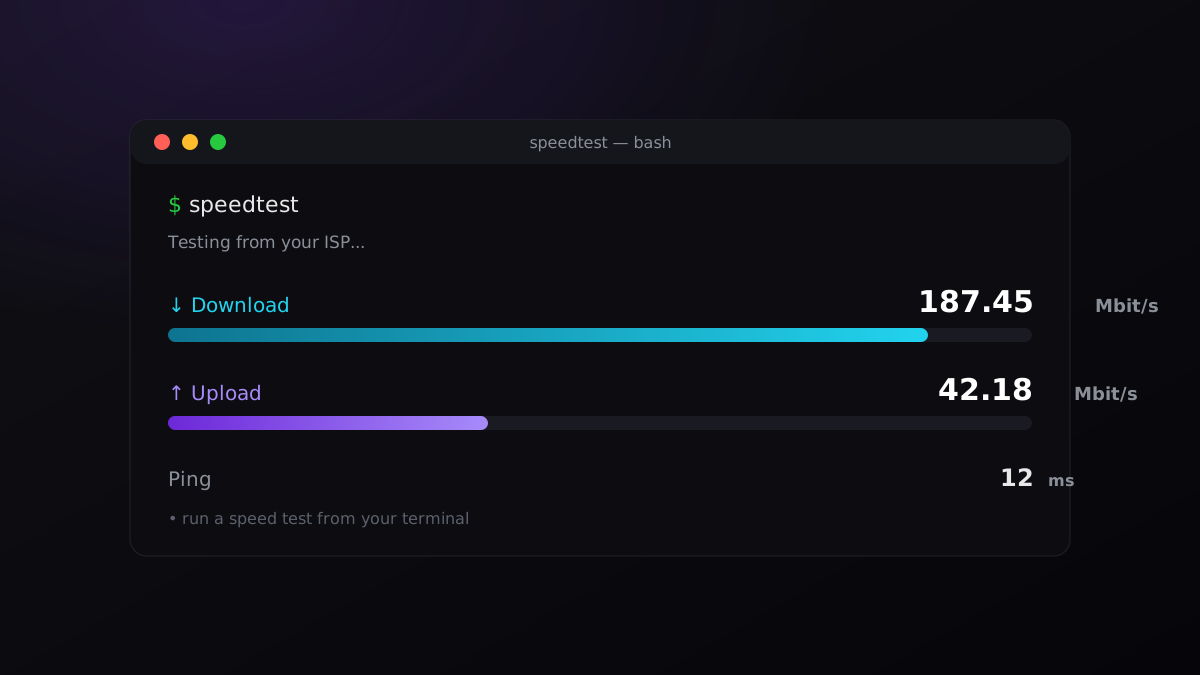
Fancy doing things in your shell prompt?
You don't need to open a browser to check your connection — you can run a speed test straight from your terminal and get your ping, download, and upload in about ten seconds. There are two good tools for it; let me show you both.
Option 1: The official Speedtest CLI (Ookla)
This is made by Ookla, the people behind speedtest.net, so the numbers match what you'd get in the browser. It's the one I recommend, especially if you care about accuracy or want to log results.
On Debian / Ubuntu, add Ookla's package repository first:
curl -s https://packagecloud.io/install/repositories/ookla/speedtest-cli/script.deb.sh | sudo bashthen install it:
sudo apt install speedtestOn macOS with Homebrew:
brew tap teamookla/speedtest
brew install speedtest
Now just run:
speedtestThe first run asks you to accept Ookla's license once, then you'll see something like this:
   Speedtest by Ookla

      Server: Globe Telecom - Manila (id: 13623)
         ISP: Globe Telecom
Idle Latency:    12.34 ms
    Download:   187.45 Mbps
      Upload:    42.18 Mbps
 Packet Loss:     0.0%
A few options worth knowing:
speedtest --servers                       # list nearby servers
speedtest --server-id=13623               # test against a specific server
speedtest --format=json                   # machine-readable output (for scripts)
speedtest --accept-license --accept-gdpr  # skip the first-run prompts (cron / CI)
Option 2: speedtest-cli (the quick, no-fuss option)
speedtest-cli is a lightweight community tool written in Python. It's in most distro repos already — no extra repository to add — so it's the fastest to get going.
On Debian / Ubuntu:
sudo apt install speedtest-cliOn macOS:
brew install speedtest-cliThen run it:
speedtest-cliExample output:
Retrieving speedtest.net configuration...
Hosted by Globe Telecom (Manila) [3.2 km]: 12.345 ms
Testing download speed................
Download: 187.45 Mbit/s
Testing upload speed................
Upload: 42.18 Mbit/s
And a few flags I reach for:
speedtest-cli --simple    # just ping / download / upload, no preamble
speedtest-cli --bytes     # report in bytes instead of bits
speedtest-cli --share     # generate a shareable speedtest.net result image
speedtest-cli --list      # list servers to target with --server <id>
No install? Run it straight from the source
If you just want a one-off and don't want to install anything, pipe the tool's script directly into Python 3:
curl -s https://raw.githubusercontent.com/sivel/speedtest-cli/master/speedtest.py | python3 -Be a little cautious with "curl pipe to interpreter" in general — only do it from a source you trust. This one is the tool's own official repository.
Note: Watch the command name — both Ookla's tool and the Python tool like to be called
speedtest. If you install both, they can collide. Stick to one, or just call the Python one by its full name,speedtest-cli, to keep them straight.
Which should you use?
- Want numbers that match speedtest.net exactly, or you're scripting/monitoring? → Ookla CLI (
--format=jsonis great for logging results over time). - Just want a quick check with the lightest install? → speedtest-cli.
Either way, you've got your bandwidth without ever leaving the terminal. Hope this helps!